Your Android files.
Safely in iCloud Drive.
iFileSync backs up your phone to your own iCloud Drive automatically, in the background. Pick a folder, turn it on, and stop thinking about it — then browse, open and download those files back whenever you need them.
Your files go straight to your account — never through our servers.
Stop catching files by hand
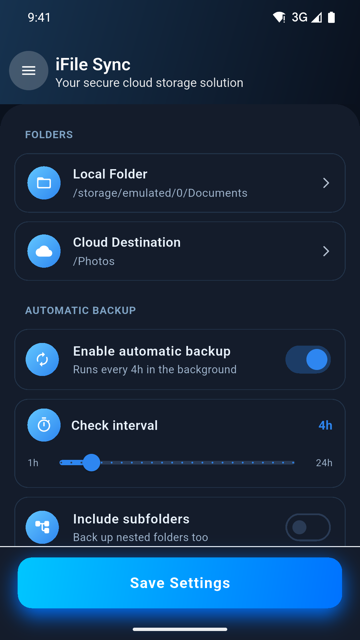
Set it up once. iFileSync handles the rest, quietly, forever.
Try it free for a month
Grab a Google Play promo code and run iFileSync for a full month on us. One per person, while they last.
Cloud Catch
Files are tumbling off the phone. Catch them before they hit the floor — and watch how quickly it stops being fun to do this by hand.
Drag, or use ← → after clicking the game. Every rule here is a real iFileSync feature: it skips duplicates, waits for Wi-Fi, and watches your storage.
Three taps, then never again
Pick a folder on your phone
Camera roll, documents, WhatsApp media — whatever matters. Include subfolders if you want them too.
Choose where it lands
Browse your iCloud Drive folders right in the app and pick the destination.
Turn on auto-sync
iFileSync uploads new and changed files in the background and tells you when it's done.
Built to be forgotten about
Automatic background sync
Runs on your schedule — hourly, daily, or whatever interval suits you. No need to open the app.
Smart uploads
Only new or changed files go up. No duplicates, no re-uploading your whole library, no wasted data.
Wi-Fi only, if you like
Hold uploads until you're on Wi-Fi so backups never touch your mobile data allowance.
Browse your cloud files
Open folders, see sizes and dates, rename things, make new folders, and delete what you don't need — all from your phone.
Download back to your phone
Pull files down one at a time, or select several and grab them in one go. They land in your Downloads folder.
Open files right away
Tap a PDF, photo or document and it opens in the app your phone already uses. No extra viewer to install.
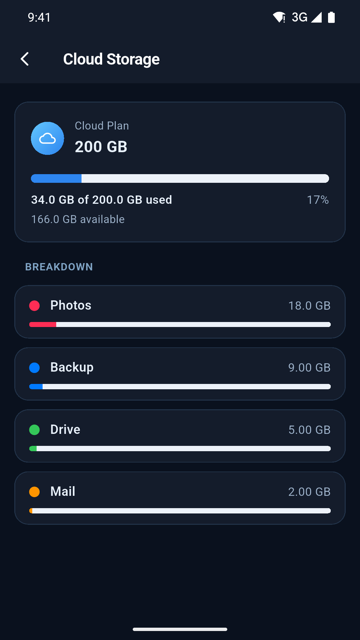
Storage at a glance
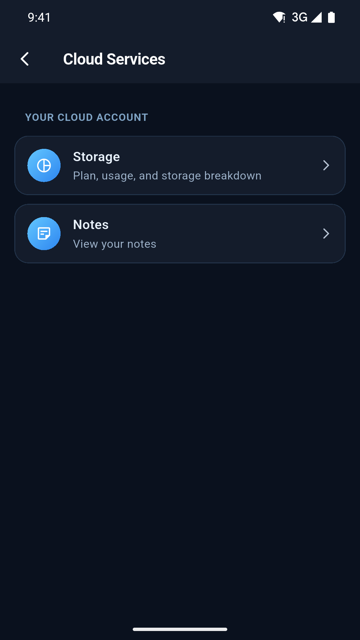
See your cloud plan, how much you've used, and what's taking up the space — without leaving the app.
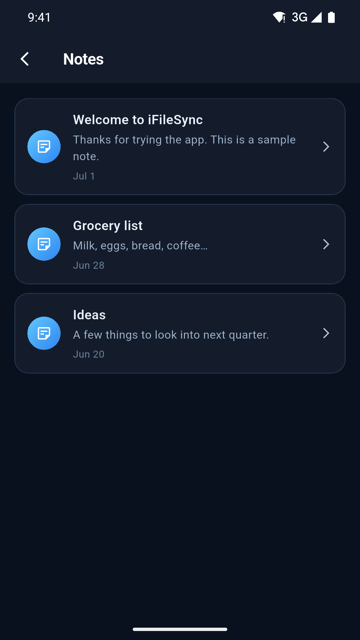
Read your Notes
Browse the notes from your cloud account right on your Android phone. Read-only, always.
Know it worked
Backup notifications and a full run history, so you're never guessing whether it actually happened.
Everything, in one table
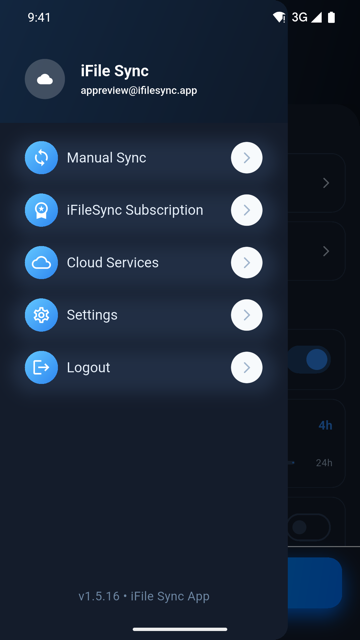
Clean, quiet, out of your way
We never see your files
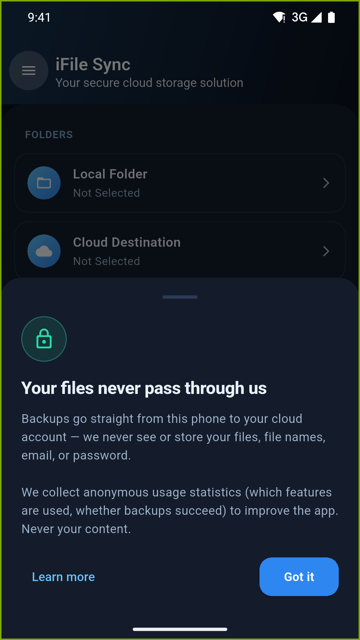
There is no iFileSync server in the middle. Your phone talks to your cloud account directly — which means there's nothing of yours for us to lose.
- Direct transfer. Files move from your device to your own account. They never touch our infrastructure.
- Your password is never stored. It's verified with your cloud provider and never kept by us.
- Sessions stay on your device, encrypted by Android's secure keystore. Sign out and it's gone.
- No file names, no paths, no contents in our analytics. Ever.
Frequently asked
Does this work with iCloud Drive?
Yes. iFileSync signs in to your existing cloud account and uploads into whichever iCloud Drive folder you choose. You need an account with the provider — iFileSync is an independent app that works with it, not a product of Apple Inc.
Do my files pass through your servers?
No. Your phone uploads directly to your own cloud account. There is no intermediate server, no copy of your files on our side, and no bucket of your data anywhere. That's a deliberate design decision, not just a policy.
What about two-factor authentication?
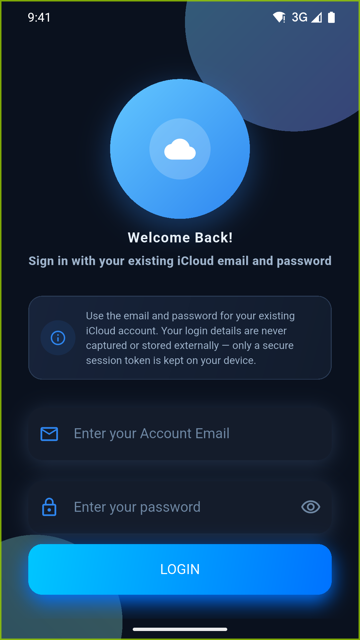
Fully supported. When your provider asks for a verification code, iFileSync sends it to your trusted phone number by SMS and you enter it in the app. After that, an encrypted session is kept on your device so you stay signed in.
Will it re-upload the same files over and over?
No. iFileSync keeps track of what it has already uploaded and only sends files that are new or have actually changed since last time. That's the "smart uploads" feature — and it's why the duplicates in Cloud Catch cost you points.
Will it drain my battery or eat my data?
It's built to be light. Backups run on an interval you choose, only upload what's changed, and can be restricted to Wi-Fi so mobile data is never touched.
How much does it cost?
iFileSync is a subscription, billed through Google Play — manage or cancel any time in your Play account. Anything that only reads your cloud is free: browsing your files, downloading them, opening them, and viewing your storage and notes. Automatic backup and changing things in the cloud — renaming, creating folders, deleting — are the paid parts.
Can I get files from iCloud back onto my phone?
Yes. Open the file browser, tap a file to download it, or long-press to select several and download them together. They save to your phone's Downloads folder. You can also tap a file to open it straight away in whatever app your phone uses for that type — a PDF viewer, your gallery, and so on.
Can I sync more than one folder?
Right now you pick one folder on your phone, with the option to include everything inside it. Multiple independent source folders are on the roadmap.
Does deleting a file on my phone delete it in the cloud?
No. Sync is one-way and additive — iFileSync only ever adds and updates. Deleting something on your phone leaves your cloud copy safely in place, which is usually what you want from a backup. If you do want to remove a cloud file, you can delete it deliberately in the file browser, and it goes to Recently Deleted where it can be restored for about 30 days.